Available on: Pro, Premium
Add a custom background image to personalize the look and feel of your hoo.be page. Backgrounds help reinforce your brand and create a more immersive profile experience.
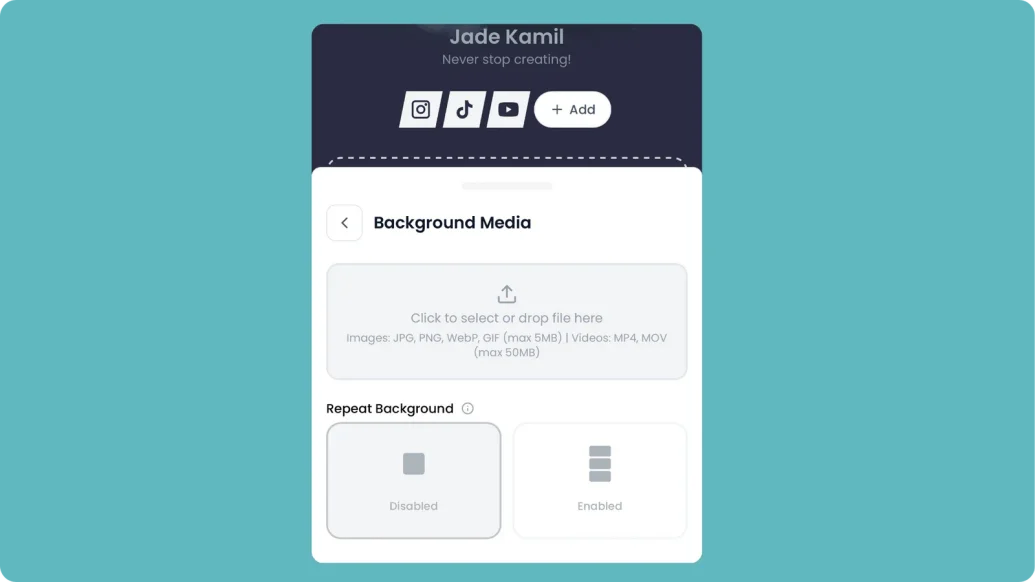
How to Add a Custom Background
Go to My Pages.
Click the page you want to edit.
Click Customize.
Select the Advanced tab.
Under Background Media, click Upload.
Choose an image from your device.
Preview how it looks on your page.
Click Save to apply your changes.
Desktop Background (Optional)
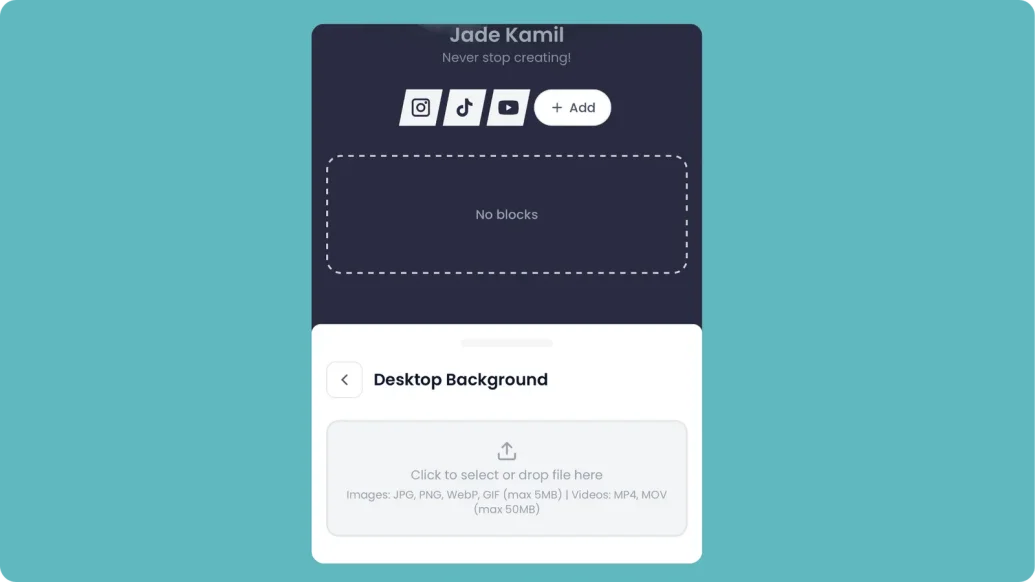
You can upload a separate background image specifically for desktop viewers.
In Customize → Advanced, scroll to Desktop Background Media.
Click Upload and select an image.
Click Save.
Background Image Requirements
Recommended size: 1920 × 1080 px or larger
Formats supported: JPG, PNG, WebP
Max file size: 10MB
Additional Options
Repeat Background Image: Toggle on to tile the image.
Block Accent & Profile Border Colors: Adjust colors to better match your background.
⚡ Plan note: Custom backgrounds are available on Pro and Premium plans.