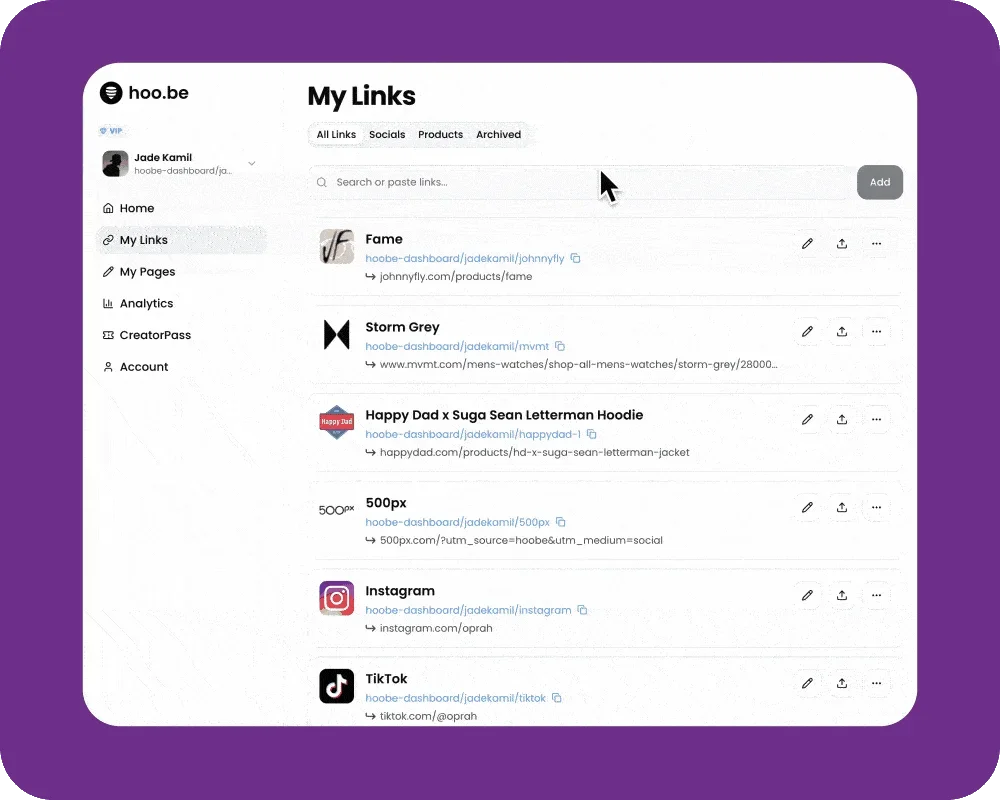
Manage, edit, and share all of your links from the My Links section of your dashboard. This is your central hub for adding new links, customizing them, archiving old ones, and grabbing Direct Links to share anywhere.
Add a New Link
Steps:
Go to My Links in your dashboard.
Type or paste a URL into the search bar.
Click Add to save it to your link library.
(Optional) Click the pencil icon to customize your link.
Add a Link to Your Page
Adding a link to My Links does not automatically place it on your profile.
To add it to your page:
Go to My Pages.
Select the page you want to edit.
Click Add Links.
Your newly added links will appear at the top — click to add them to your page.
📷 Optional screenshot placeholder: “Add Links panel”
Edit a Link
In My Links, click the pencil icon on any link to edit:
Display Tab
Change the thumbnail image
Update the title
Edit the link slug
Options Tab
Toggle pop-out mode
Mark content as 18+
(Pro/Premium options will be labeled within the editor.)
Share a Direct Link
Every link has a built-in Direct Link you can copy and share anywhere.
To share one:
Go to My Links.
Click the Share icon next to the link.
Copy and paste the Direct Link anywhere (Stories, bios, DMs, email, etc.).
Direct Links track their own analytics in your Insights tab.
Archive a Link
To archive a link:
Go to My Links.
Click the three dots next to the link.
Select Archive.
Archived links appear under the Archived tab and can be restored anytime.